Free public beta
Halloween edition
LARK
Live Audio Recording Kit — a live recording app for audio engineers
Record live shows and rehearsals on macOS and Windows.
Play the multitrack back at any rate, check the mix against a reference curve, and export split at every marker.
NEW 0.3.6: update from inside LARK, and a bright Light skin for daylight — see what’s new
Why LARK
More than a recorder.
Multitrack playback with real-time SRC
Recorded at 48 kHz, playing back on a 96 kHz rig — or the other way round? LARK converts in real time with r8brain, so any session plays on any interface without re-rendering. When the rates match, playback is bit-perfect.
- 48 ⇄ 96 kHz, 44.1 kHz and more
- Multitrack out to the same channels you recorded from — ready for virtual soundcheck
Export split at every marker
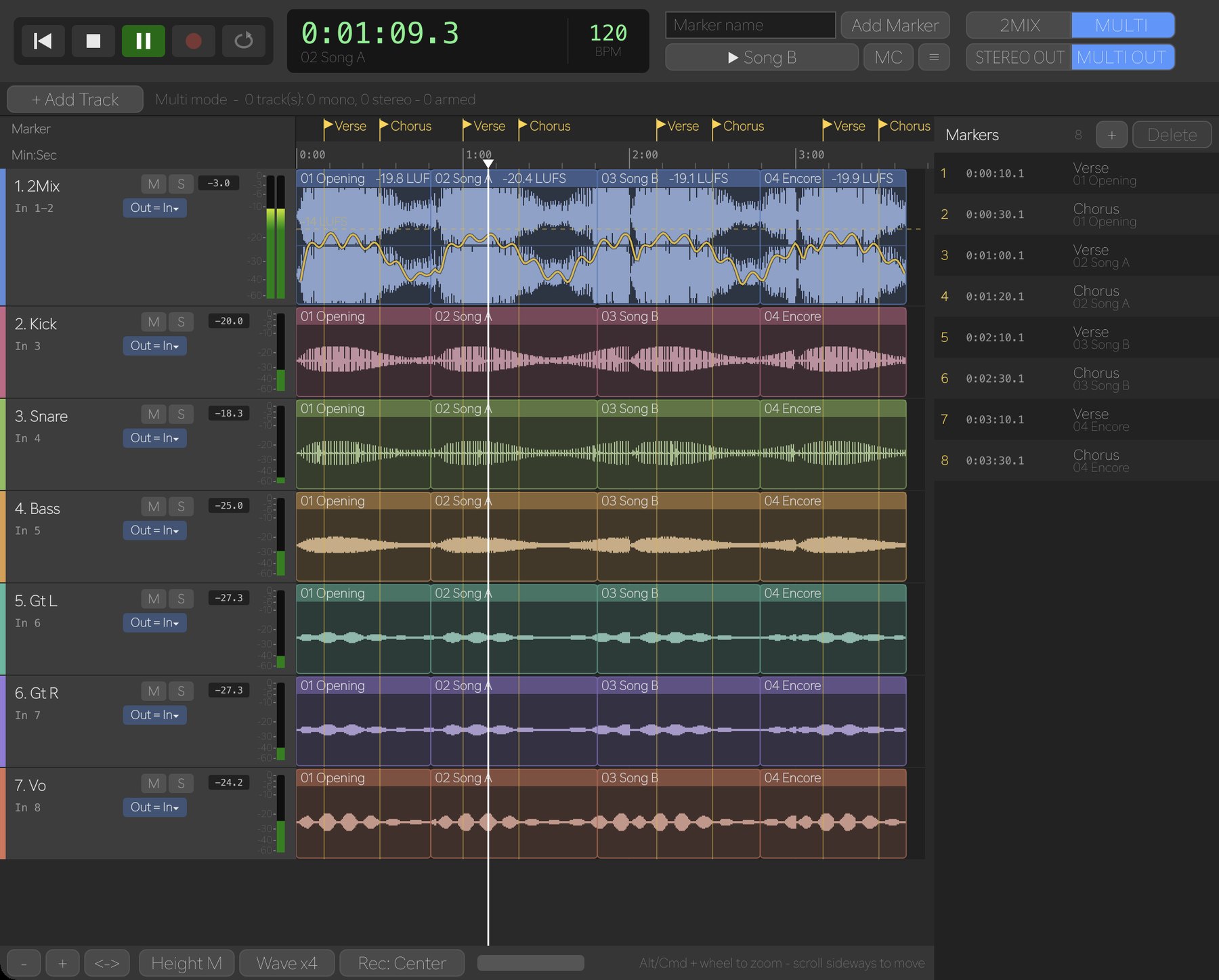
Drop markers while you record (⌘/Ctrl+Enter), then choose Split at markers when you export. Every section from one marker to the next becomes its own file, named after its marker.
- Mixdown, single tracks or stems
- WAV 16 / 24 / 32-bit float or MP3, with sample-rate conversion and normalize
Check your mix against a reference curve
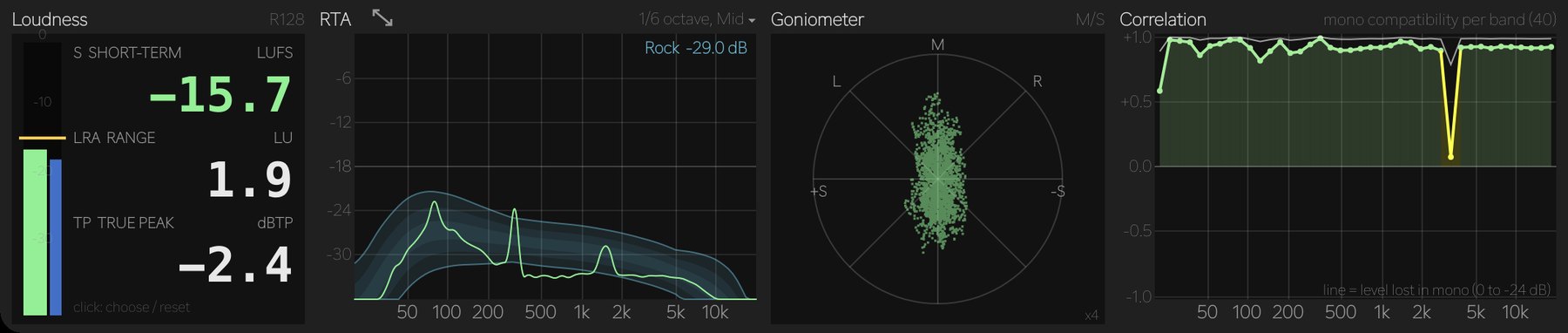
An RTA from 1/1 to 1/48 octave with a target to aim for: Rock, Pops, EDM, Hip-Hop / R&B, Jazz / Acoustic or Pink, drawn as a band. Drag it to your level, draw your own curve, or capture one from a reference track. Next to it: Loudness to ITU-R BS.1770-4 / EBU R128, a goniometer with a per-band Polar Level view, and 120-band Correlation that shows exactly which frequencies cancel in mono.
- Multi-time-window engine: fine resolution in the lows, fast response in the highs — smooth curves at 60 updates a second
- Choose the range (24 to 96 dB), averaging (0.1 to 3 s) and level scale; open it in a large, resizable window
- The Integrated LUFS of every song next to its name, and loudness history on the 2Mix lane
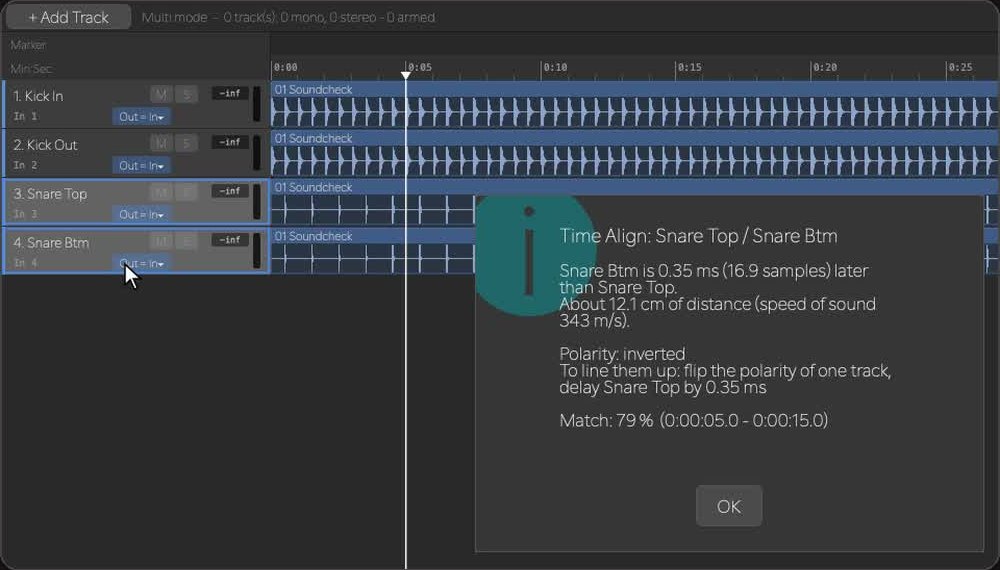
Time Align: how far apart are your mics?
Select two tracks — kick in and out, snare top and bottom, a DI and its amp mic — and right-click Find the Time Offset Between the 2 Tracks… LARK shows the offset in milliseconds, samples and centimetres, and whether the polarity is inverted.
- Tells you which track to delay, and by how much
- Measures over the loop range (up to 30 s), searching ±50 ms; warns when the match is weak
- Only measures — your tracks are never changed
Two modes
One app for the board mix and the multitrack.
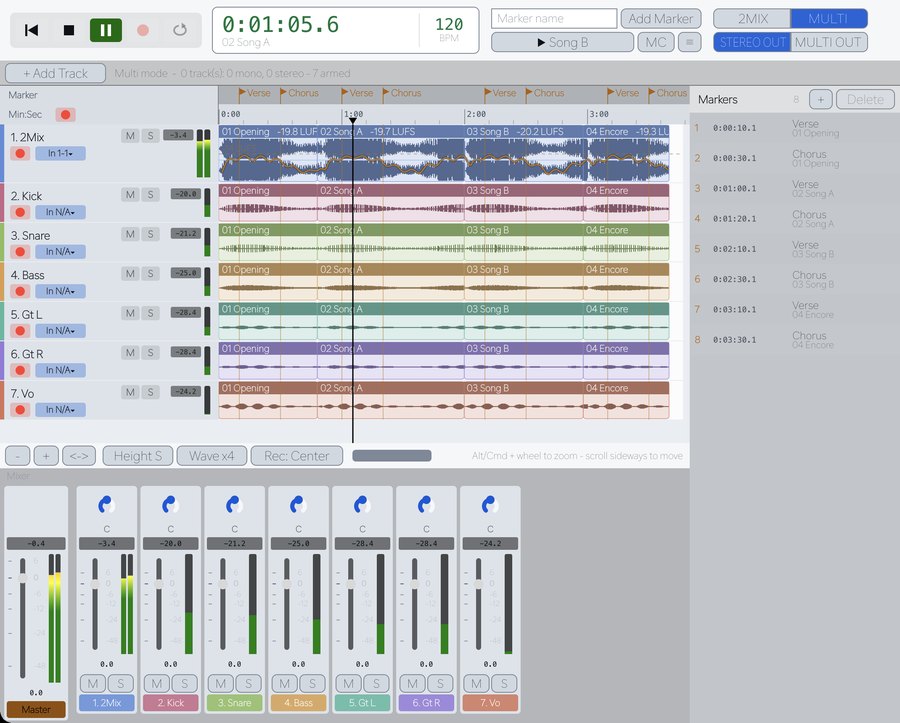
Switch with 2MIX / MULTI at the top — even while recording. Both modes can record at the same time, so the board mix and the multitrack run side by side.
Record the show. Deliver it the same day.
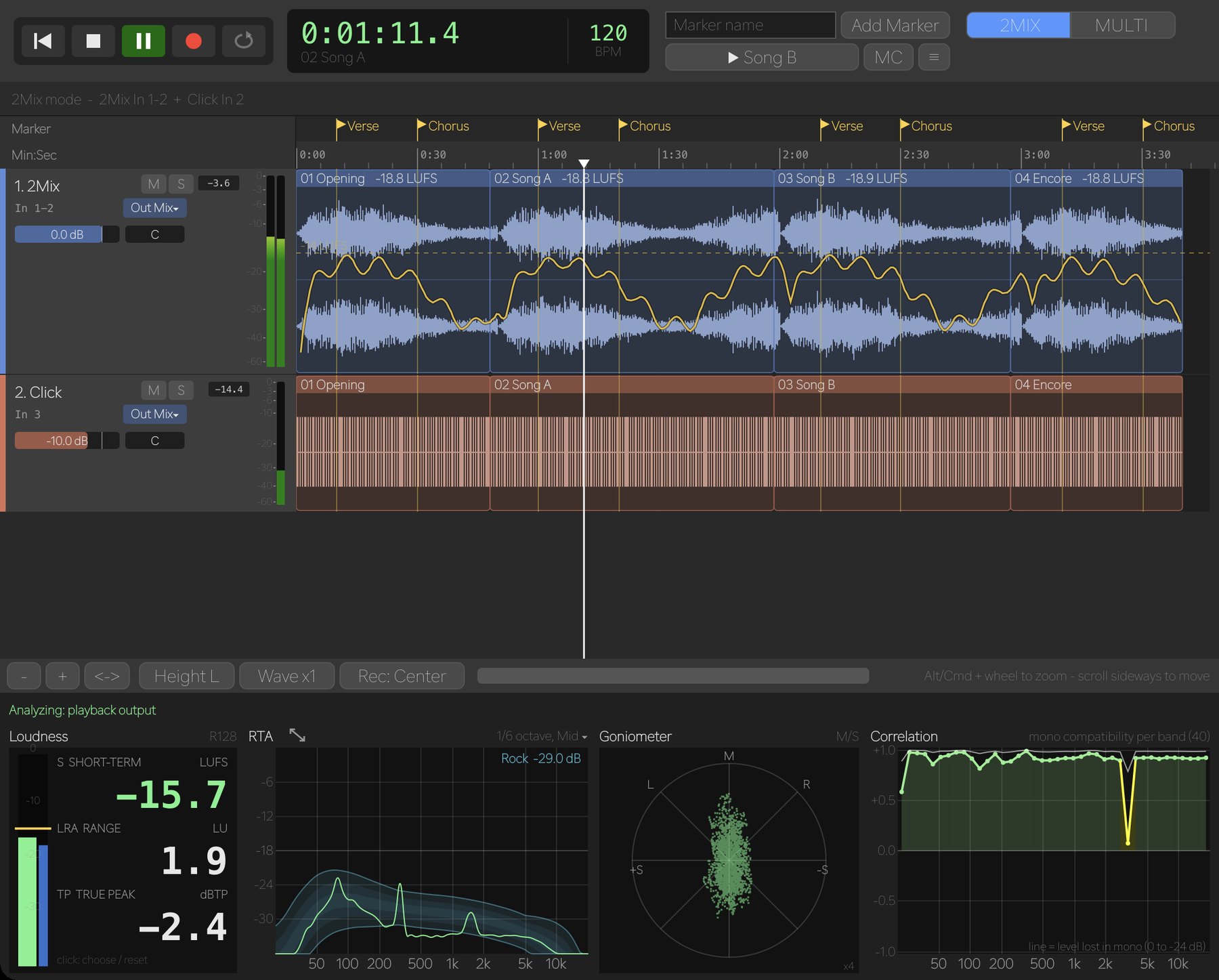
- Records the stereo 2Mix (L/R). Turn on Also record a click channel to capture the click on its own track.
- Mix the click into the 2Mix when you export, with its own level and pan — or leave it out.
- Patch each track with In / Out: send it to the main mix, or straight to any output channel (for example 2Mix → Out 1-2, Click → Out 3 for in-ears).
Loudness
BS.1770-4 / R128. Pick what to show: S, I, M, LRA or True Peak, with a target line.
RTA
1/1 to 1/48 octave, with reference curves (built-in or your own) and a large window. Choose the signal it reads.
Goniometer
M up, L / R on the diagonals; it zooms with the level. Click it for Polar Level: position and phase per band, with peak hold.
Correlation
L/R correlation in 120 bands and how much each loses in mono — see exactly where things cancel.
The analyzer reads the 2Mix input while standing by or recording, and the playback output while playing. The master volume doesn’t affect it.
Multitrack recording and playback.
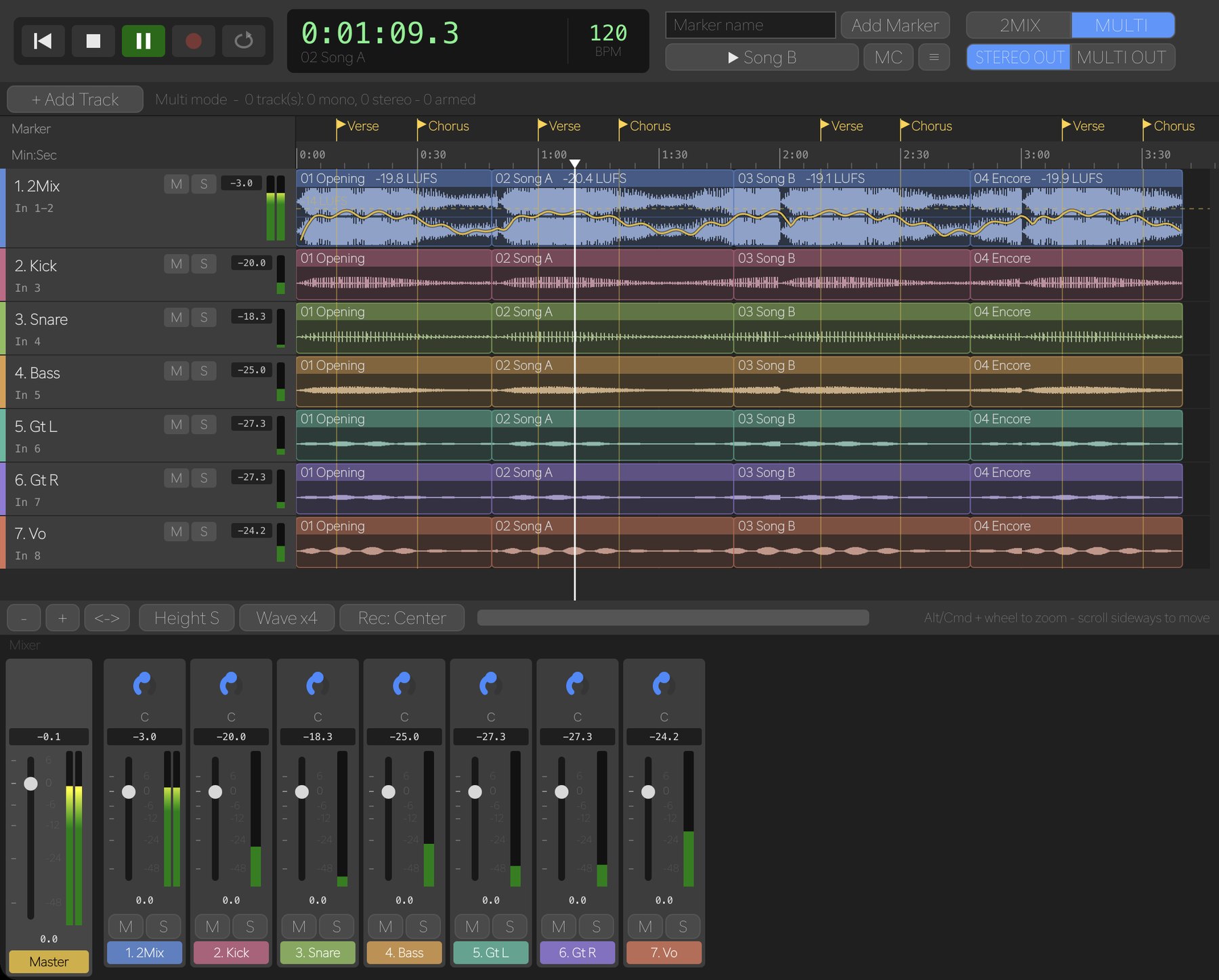
- + Add Track (⌘/Ctrl+Shift+N): Mono or Stereo, how many, first input / output channel and a name. Channels are assigned in order.
- Every track has its own In, REC and Out. One button arms or disarms all tracks.
- Patch matrix for inputs and outputs: click one cell, or drag down to patch a whole run in order.
- Import channel names from the console over the network — or paste a channel list from any desk. See the supported consoles.
- Track layouts are saved per audio device. Optionally record the 2Mix (e.g. the desk’s REC OUT) alongside.
STEREO OUT
Mixes every track with its fader, pan, mute and solo into the output pair you choose. Open the Mixer for master plus per-track pan, peak, fader, meter and M / S.
MULTI OUT
Sends each track, at unity, to the output with the same number as the input it was recorded from — change it from the track’s Out. Made for virtual soundcheck.
Show-day tools
Everything you reach for during the show.
Setlist markers
Type the songs in before the show. One key (N) drops a marker with the next song’s name, another (M) adds “MC #1”, “MC #2”… Export splits right there.
Tempo detection
The tempo appears next to the transport clock, from the input while recording and the output while playing. Click it for ×2 / ÷2.
Big Clock
View → Big Clock… shows the time of day as large as the window — 12- or 24-hour, and on top of LARK if you like.
Large RTA window
Pop the RTA out into its own resizable window, keep it on top, and watch the reference curve from across the room.
Record the computer’s sound
Choose This Mac’s sound (or This PC’s sound) as the input to record whatever is playing on your computer — a reference track, a browser, a video call. No driver needed. (macOS 14.2 or later; Windows 10 / 11.)
Your language
English, 日本語, 中文(简体 / 繁體), 한국어, Español, Français, Deutsch, Italiano, Português and ไทย — switch from View → Language.
Make a Click
No click was recorded? Edit → Make a Click builds a click track from the 2Mix: a fixed tempo per song, accents on beat 1, and the bar start you choose.
Multi-patch
Send one track to several outputs at once — from the track’s Out menu, or ⌘/Ctrl-click in the Patch Matrix.
Templates from any session
Load a past session as a template and pick what to take over: mode, tracks, patching, colours, mix, format and name.
Channel names straight from the console
Import Channel Names reads the names (and colours where the desk sends them) over the network, so your tracks are labelled before the doors open. Find Consoles searches the network for Yamaha desks.
- Yamaha CL / QL / RIVAGE PM / DM3 / DM7
- DiGiCo SD / Quantum
- Allen & Heath dLive / Avantis
- Behringer / Midas X32 / M32 / X Air / MR
- Any desk — paste a channel list
The Patch Matrix shows your interface’s own channel names too (for example MADI 1, 2, 3…).
Built for the live room
You only get one take of the show.
Pre-roll
LARK keeps buffering audio, so the file starts 60 seconds before you pressed REC. Late on the button? The top of the song is still there. (On / off in Settings.)
Backup recording
Writes the WAV files and the .lrks session to a second drive at the same time. If the backup fails, the main recording keeps going.
Warning bar
Low disk space, clipping, an input that stays silent, dropouts, an input device that stops, and a backup that stops.
Crash-safe WAV
The WAV header is updated every second, so if anything goes down, everything up to that point is still a playable file.
No 4 GB limit
16 / 24-bit or 32-bit float WAV. Past 4 GB the file switches to RF64 automatically. MP3 (128–320 kbps) can be written at the same time.
Split without a gap
⌘/Ctrl+R to record and stop, ⌘/Ctrl+Enter for a marker, ⌘/Ctrl+→ to start the next song — a new file with no break in the audio.
Edit & export
Tidy it up without touching the originals.
All editing is non-destructive — the recorded WAV files are never rewritten.
Markers & marker list
Drop them while recording and move them even mid-take. The marker list shows number, time, name and song; click to jump.
Punch-in & retakes
After you stop, move the playhead and hit REC to record again from there. The new take plays on top; the old files stay on disk.
Song regions
Rename, trim by dragging the edges, split (⌘/Ctrl+B), join, delete, set the head or tail to the playhead, loop.
Clips per track
Select clips on one track or many (Shift / ⌘-click, ⌘A) and delete them from that track only, or from every track.
Go to a time
Click the time display and type a time to jump there — even past the end, to record from that point. Right-click it to change the format.
Undo / Redo
⌘/Ctrl+Z and ⌘/Ctrl+Shift+Z for markers, songs, track order and visibility, patches, colours and REC arming.
Export (⌘/Ctrl+E)
Mixdown, a single track, or stems. Pick clips, the loop range, or split at markers — or right-click a marker to export just that section. WAV 16 / 24 / 32f or MP3, sample-rate conversion (r8brain), and normalize to a peak of −0.1 to −3 dBFS.
Zoom to the sample
Zoom in until you see the individual samples, with a millisecond ruler — drawn from the recorded audio, not a summary.
Click-free edges
Every exported file gets a 4 ms fade in and out, so cuts between songs never click.
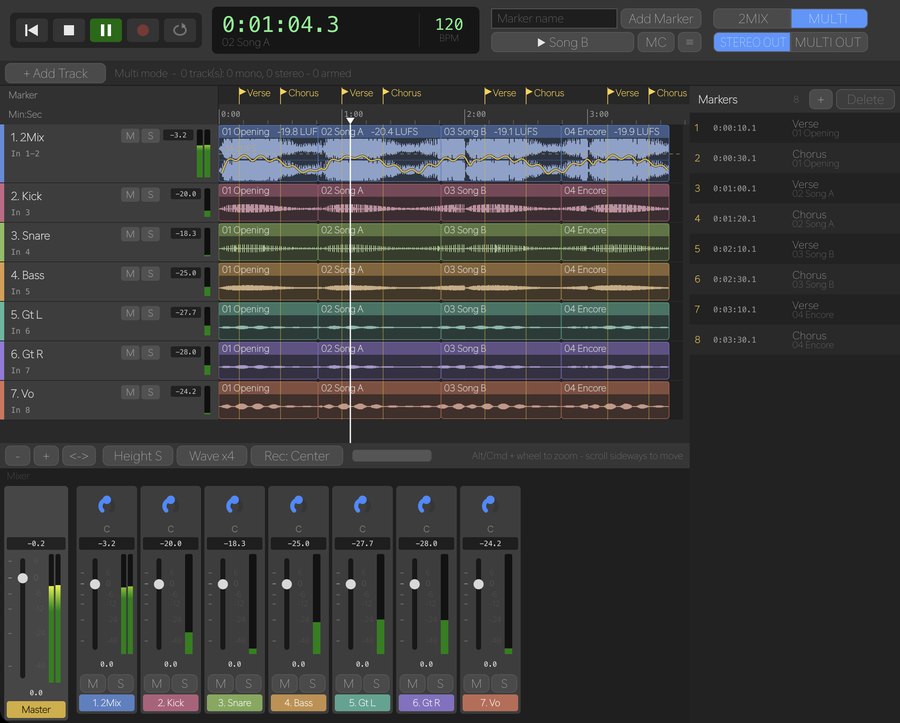
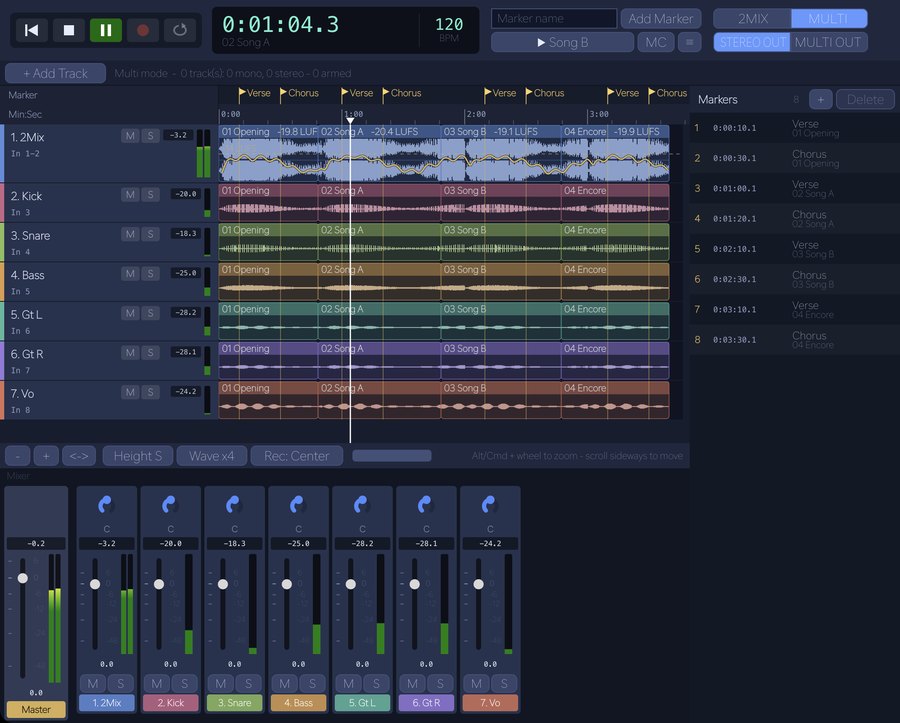
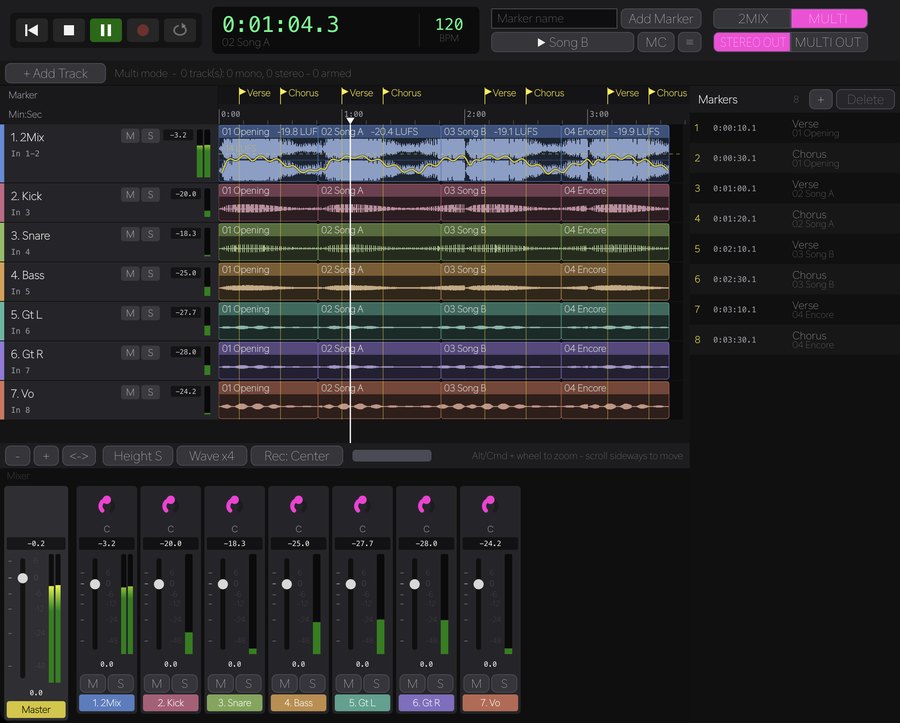
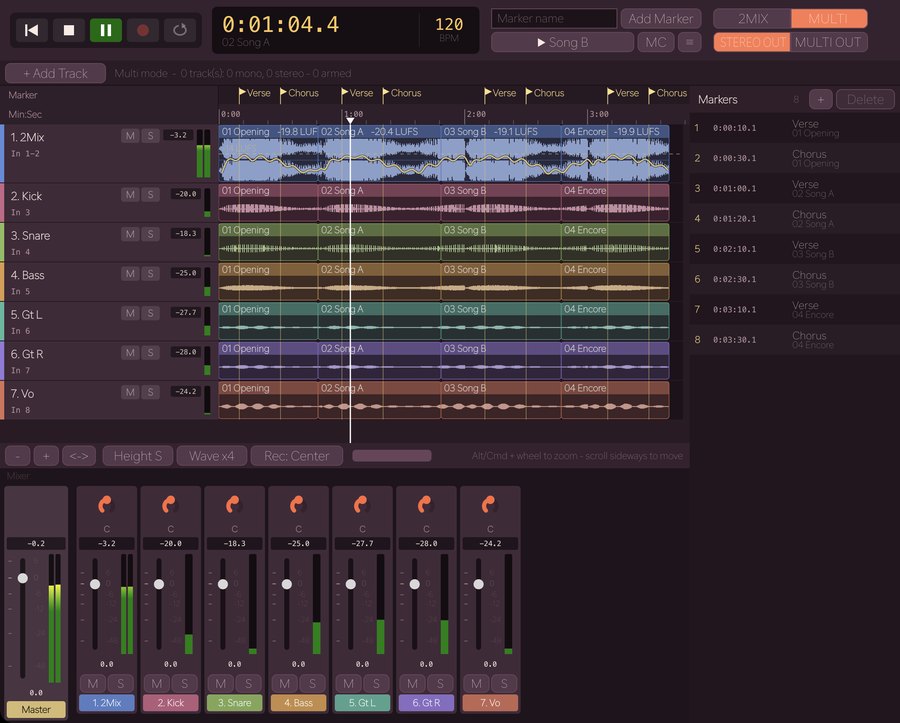
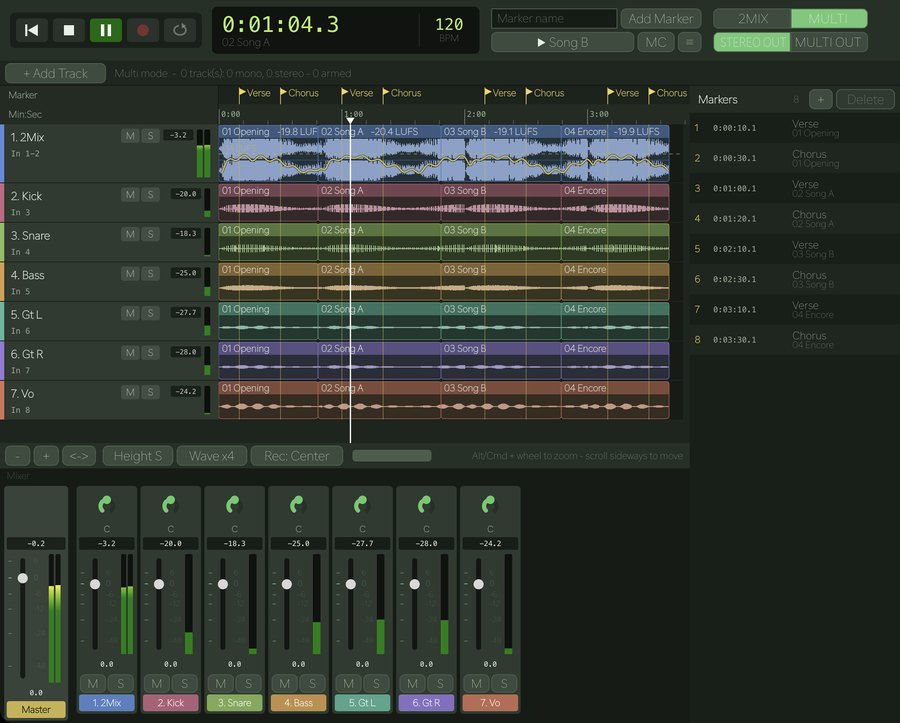
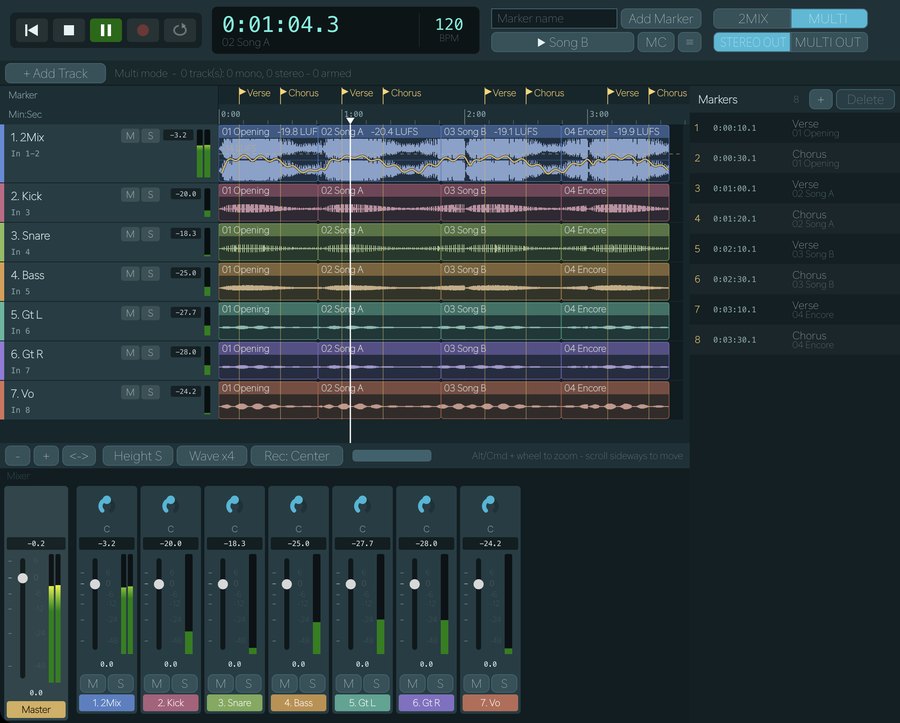
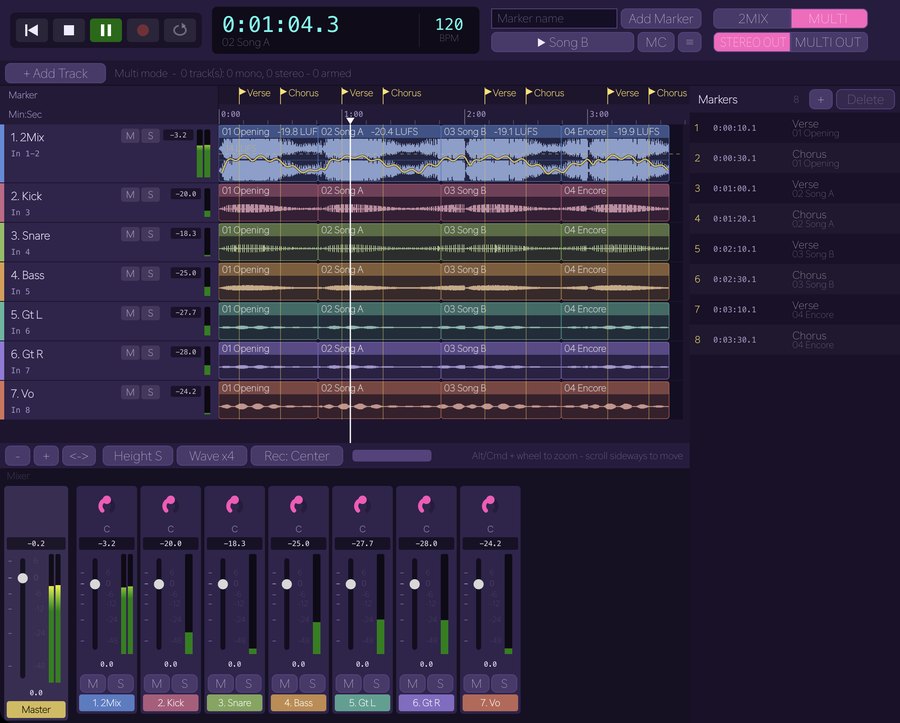
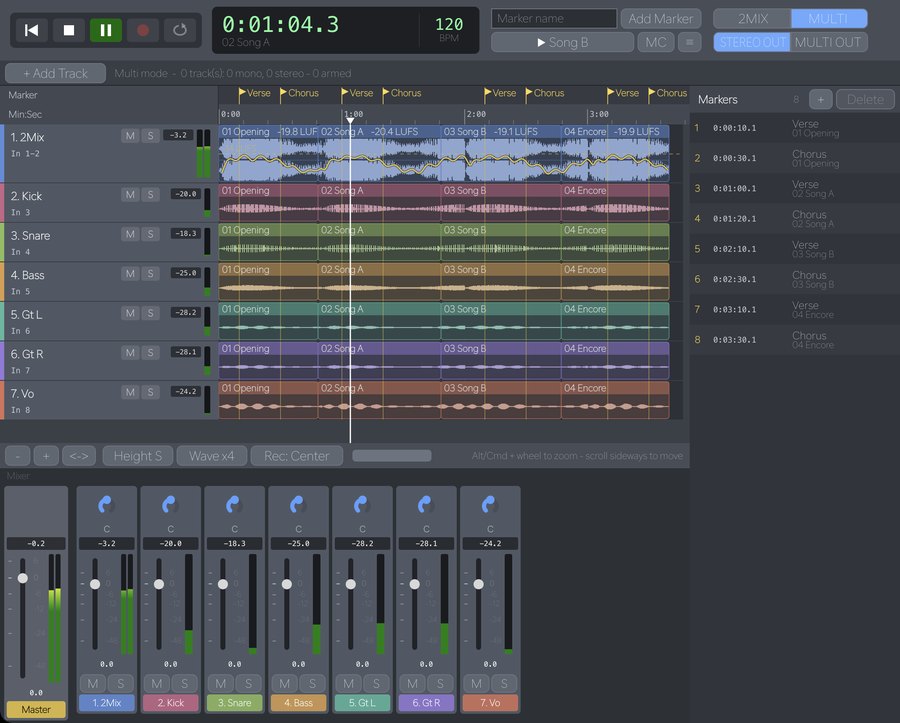
Skins
Ten looks. Still easy on the eyes.
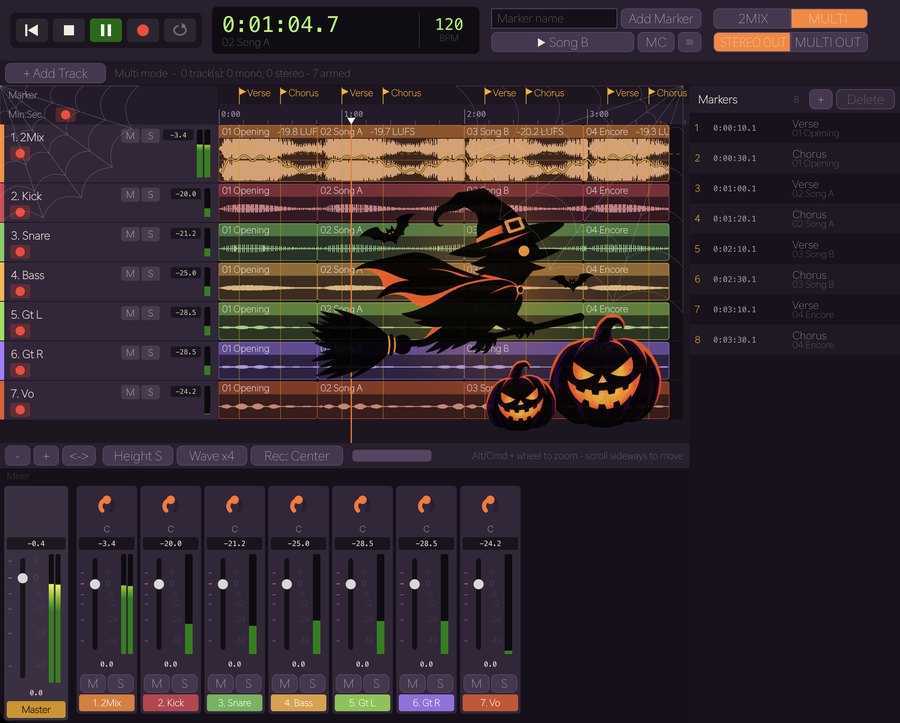
Choose from View → Skin. Every skin keeps a dark background with bright text, and track, meter and REC colours never change — they mean something.
Audio interfaces
From a laptop mic to a 256-channel network.
Windows
ASIO · WASAPI
macOS
Core Audio
Multichannel
Dante Virtual Soundcard · AVB · MADI
Up to 256 channels in and out — or the computer’s own sound as the input.
Tested at 256 channels, 96 kHz and a 64-sample buffer with no dropouts on an 8 GB Mac. Choose the driver type, device, sample rate and buffer size in Settings. On a multichannel output device you can choose which output channels to play back on.
Public beta
Help us shape LARK.
LARK is free to use during the beta. Take it to your rehearsals and gigs, then tell us what works and what doesn’t — your feedback goes straight into the finished version.
- 1
Fill in the form
Your email, your OS, and the gear you record with. It takes about two minutes.
- 2
Download
The download links for macOS and Windows appear as soon as you submit.
- 3
Record & report
Use every feature free until December 31, 2026. Get new builds from Help → Check for Updates… (what’s new)
Opens the application form (Google Forms) in a new tab.
macOS
- macOS 12 Monterey or later
- Apple silicon
- Core Audio interface
Windows
- Windows 10 / 11 (64-bit)
- ASIO or WASAPI interface
- LARK.exe + MP3 library (DLL) — no installer needed
Is the beta really free?
Yes. Every feature is free until December 31, 2026 (23:59 JST). No card and no Google account needed — just the form.
What happens when the beta ends?
LARK will become a paid app. When the beta ends, the app asks for a license key; you can buy one then. Your recordings and sessions stay exactly where they are.
Can I use it at a real show?
Please do — that’s what it’s for. But it is beta software, so for an important show, keep another recorder running as a backup.
How do I send feedback or report a bug?
In LARK, choose Help → Send Feedback / Report a Bug… Tell us what you were doing when it happened; system information is only sent if you tick it, and your recordings are never sent. You can also email info@lark-audio.com.
Does LARK send any data?
LARK checks for updates once a day; we count these checks (no personal data). Bug reports and feedback are only sent when you send them yourself.
Can I share the download with a friend?
Please ask them to apply with the form instead, so we can keep in touch with every tester.
Can I invite other engineers?
Yes, please. In LARK, choose Help → Invite Engineers… to get your personal link. When an engineer applies for the beta through your link, you get a discount on LARK 1.0.